


How to Buy COD Points with Google Pay in 2026

Eneba Hub contains affiliate links, which means we may earn a small commission if you make a purchase through them—at no extra cost to you. Learn more










QUICK ANSWER
To buy COD Points with Google Pay, choose a COD Points pack through your platform's official store and select Google Pay if available. You can also buy a COD Points code on Eneba and try the HUB10 code for an extra 10% off eligible offers, then redeem it on Xbox.
On PC or console, you can buy COD Points with Google Pay by choosing a pack through your platform’s official store, then selecting Google Pay if it’s available at checkout. Another option is to purchase compatible prepaid codes or platform gift cards from participating retailers. This guide covers both purchasing routes, payment availability, common checkout issues, and code redemption.
Even after a successful payment, the product still needs to match your gaming account. COD Points balances are platform-specific, and prepaid products may have additional activation restrictions. Knowing what to check beforehand can help you make the right purchase.
Jump to:
Important Things to Know Before Buying COD Points with Google Pay
Your gaming platform, payment setup, and choice of product all play a part in how your COD Points purchase works. To make sure everything goes smoothly, here are a few essentials worth checking before you reach checkout:
- Platform compatibility: Purchased COD Points remain tied to their platform, even when your gaming accounts are linked. Make sure you’re buying for Xbox, PlayStation, Steam, or Battle.net, depending on where you play.
- Game compatibility: Call of Duty: Mobile uses a separate currency balance. Its Google Play billing system and purchased points aren’t interchangeable with PC or console purchases.
- Direct purchases vs. prepaid products: Official store purchases generally add points directly to your account. Prepaid codes require separate redemption, while platform gift cards provide store credit for eligible purchases.
- Google Pay requirements: You’ll need an eligible payment method linked to your Google account and a checkout that supports Google Pay. Having a card saved in Google Wallet doesn’t guarantee acceptance.
- Regional restrictions: Payment availability varies by platform and country. Prepaid products may also have activation restrictions, so check the listed region and account requirements before purchasing.
These details are worth a quick check before you commit to an order. They also make it easier to choose between buying directly through your platform’s store and using a prepaid product.
How to Buy COD Points with Google Pay
You can purchase COD Points directly through your platform’s official store or buy compatible prepaid products from third-party retailers. The steps differ slightly depending on your chosen route, especially when it comes to receiving your points. Here’s how to buy COD Points with Google Pay on PC or console.
Step 1: Choose where to buy
Start by choosing the purchasing route that works for your platform. You have two options:
- Official store: Launch Call of Duty on Xbox, PlayStation, Steam, or Battle.net and open the in-game Store. You can also visit your platform’s official online store and search for COD Points.
- Third-party retailer: Find a retailer selling compatible COD Points codes or platform gift cards. Check that it offers Google Pay at checkout before proceeding.
Step 2: Select your COD Points pack
Choose the amount of COD Points you want and review the product details. For prepaid products, pay close attention to the supported game, gaming platform, and activation region. Platform gift cards provide store credit instead of points, so you’ll need to purchase a pack separately.
Step 3: Verify your account details
Check that you’re signed in to the correct platform account before paying. Direct purchases are associated with the account used at checkout, while prepaid codes must be redeemed on a compatible account. This is especially important if you play across multiple platforms.
Step 4: Select Google Pay
Look for Google Pay among the available checkout options. Support varies by platform, device, and region, so you may need to use another accepted method or purchase a compatible prepaid product from a participating retailer.
Step 5: Authorize your payment
Review the final price, billing currency, and selected funding source before confirming. Follow any authentication instructions from Google or your bank, then wait for the store to confirm your transaction.
Step 6: Check your purchase
Keep your receipt and launch Call of Duty on the purchasing platform to check your balance. Direct purchases generally add points without redemption, while prepaid products require separate activation. If your points haven’t appeared, review your order history before attempting another payment.
💡 Extra tip: You can also compare compatible COD Points codes on Eneba and try the HUB10 code for an extra 10% off eligible offers. Check the product’s platform and activation region, then select Google Pay if it’s available for your order.
Shop COD Points Deals on Eneba
Google Pay Fees and Limits for COD Points
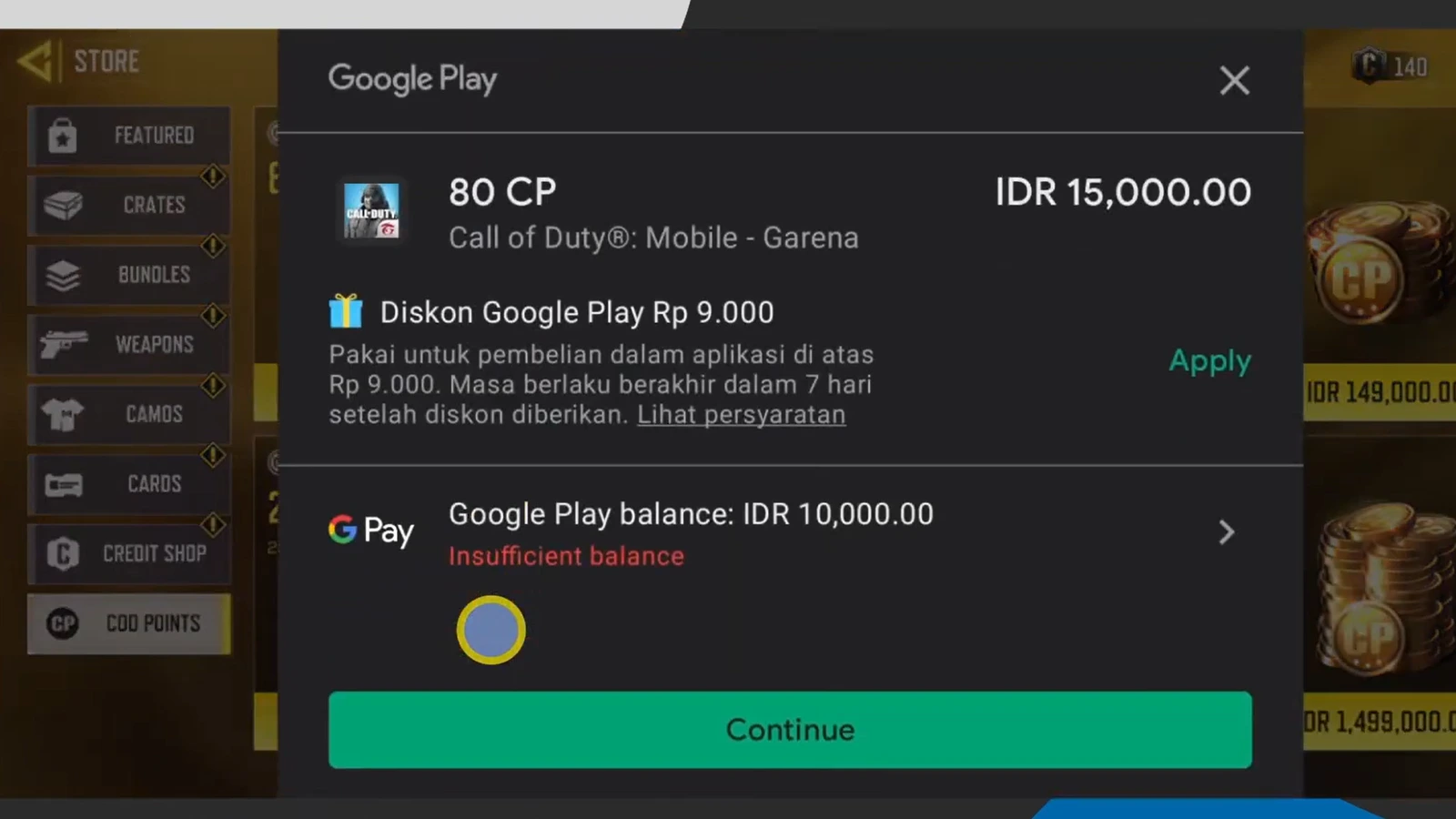
Google Pay generally doesn’t charge buyers an additional fee, but your final purchase cost can still vary. Depending on where you shop and how you pay, there are a few charges and restrictions worth keeping in mind.
- Purchase fees: Google Pay doesn’t charge buyers for standard payments. However, applicable taxes and retailer checkout fees may increase your total.
- Currency conversion: If you’re paying in a foreign currency, your card issuer or payment provider may apply conversion fees or its own exchange rate.
- Spending limits: Your bank, available funds, and platform spending controls can restrict transactions. Some stores may also impose purchase limits.
- Funding source: Your saved card remains subject to its usual terms. Credit card interest may apply if you carry an unpaid balance, while expired cards or insufficient funds can prevent payment approval.
To avoid unexpected charges, review the billing currency, selected payment method, and final checkout total before authorizing your purchase.
Troubleshooting Google Pay Payments for COD Points
Your COD Points purchase can run into issues at different stages, from selecting Google Pay to receiving your points. Each problem calls for a different solution, so the following checks can help you get things sorted out without making another purchase unnecessarily.
Google Pay Option Missing
Your platform’s checkout may not support Google Pay in your region or on your current device. Review the available payment methods and try the official online store if supported. If the option still doesn’t appear, consider another accepted method or a retailer selling compatible prepaid products.
Google Pay Authentication Failed
If the payment window closes or verification doesn’t complete, reopen checkout and follow the authentication prompts. Make sure your browser is up to date and respond to any additional approval requests from your bank. Review your order history before trying again to avoid duplicate payments.
Saved Card Declined
Review your card’s expiration date, billing details, and available funds in your Google payment settings. Your bank may also block certain online transactions or request additional verification. If everything looks correct, contact your issuer or try another eligible card.
Payment Pending but No Confirmation
A pending authorization doesn’t necessarily mean your order went through. Look for a confirmation email and review your platform’s or retailer’s transaction history. If the payment remains pending without a completed order, contact the seller before submitting another payment.
Payment Completed but COD Points Missing
First, verify that you’re signed in to the platform account used for the purchase. Restart Call of Duty and check your balance again, as points may take up to 24 hours to appear. If they’re still missing afterward, contact the store that processed your payment and provide your receipt.
Prepaid Code Won’t Activate
Make sure your code matches your platform and activation region. Follow the redemption instructions provided with the product, as currency codes and platform gift cards work differently. If you still encounter an error, contact the retailer with your receipt and the error message.
Alternative Payment Methods for COD Points
A failed Google Pay checkout doesn’t mean you need to abandon your purchase. Your platform’s official store may accept another payment method, or you can explore compatible prepaid products through third-party retailers. Here’s how the main alternatives compare.
|
Payment Method |
Where Available |
Notes |
|---|---|---|
|
Official + Third-party |
Select it where the platform or retailer checkout offers it. |
|
|
Official (limited) + Third-party |
Website support depends on the checkout and region. |
|
|
Third-party retailers |
Buy compatible prepaid products through retailers accepting crypto. |
|
|
Eneba only |
Spend eligible Eneba balance on compatible codes. |
|
|
Official + Third-party |
Credit and debit cards work through supported store and retailer checkouts. |
You can also use eligible platform gift cards or store credit to purchase COD Points. If you prefer working towards your next COD Points purchase by earning rewards, you can do it through Snakzy. Complete eligible mobile game challenges to collect coins, then exchange them for available rewards, such as gift cards, once you meet the redemption requirements.
Play eligible mobile games to earn coins toward gift cards or Eneba Wallet credit for a future COD Points purchase. Redemption minimums apply.

Google Pay Availability for COD Points by Country
Google Pay availability for COD Points depends on your gaming platform, country, and checkout. Xbox has introduced the payment method on selected online purchases, while support through PlayStation, Steam, and Battle.net remains limited or unconfirmed. The table highlights what we know across major Call of Duty markets.
|
Country |
Google Pay Support |
Notes |
|---|---|---|
|
United States |
🟩 |
Google Pay reported on Xbox’s online checkout. |
|
United Kingdom |
🟩 |
Google Pay reported on Xbox’s online checkout. |
|
Germany |
🟨 |
PlayStation doesn’t list Google Pay. Other platforms unconfirmed. |
|
France |
🟨 |
PlayStation doesn’t list Google Pay. Other platforms unconfirmed. |
|
Canada |
🟨 |
PlayStation doesn’t list Google Pay. Other platforms unconfirmed. |
|
Australia |
🟨 |
PlayStation doesn’t list Google Pay. Other platforms unconfirmed. |
|
Spain |
🟨 |
PlayStation doesn’t list Google Pay. Other platforms unconfirmed. |
|
Mexico |
🟨 |
Google Pay support on official platform checkouts remains unconfirmed. |
|
Brazil |
🟨 |
PlayStation doesn’t list Google Pay. Other platforms unconfirmed. |
|
Indonesia |
🟨 |
PlayStation doesn’t list Google Pay. Other platforms unconfirmed. |
Note:
- 🟩 Available on at least one relevant official platform store.
- 🟨 Unavailable on specified platforms, while support on other official platforms remains unconfirmed.
These statuses reflect published payment information and reported checkout availability, not guaranteed support for individual COD Points purchases. Your available options may differ by account, device, and region.
For another purchasing option, browse compatible prepaid COD Points products on Eneba. Review the platform and activation requirements, check the payment methods available for your order, and try HUB10 for an extra 10% off eligible offers.
Shop COD Points Deals on Eneba
How to Redeem a COD Points Code
A prepaid purchase isn’t complete until you’ve activated the code on the correct platform. Unlike direct store purchases which add COD Points to your account without redemption, prepaid codes require a few extra steps.
Here’s how to redeem a COD Points code:
- Retrieve your code from the retailer’s completed order or confirmation email.
- Review the product’s activation instructions to confirm its supported platform and redemption requirements.
- Open the official redemption page for Xbox, PlayStation, Steam, or Battle.net, as specified by the product.
- Sign in to the correct platform account linked to your Call of Duty profile.
- Enter the code in the designated field and review the product details before confirming.
- Launch Call of Duty on the supported platform and check your updated balance.
If you purchased a platform gift card instead, redeem it to add store credit to your account. You can then use that balance to purchase an eligible COD Points pack.
Looking for more COD Points? Check out compatible offers on Eneba and try the HUB10 code for an extra 10% off eligible offers. Just make sure the product supports your platform and activation region before purchasing.
Shop COD Points Deals on Eneba
Get COD Points Cheaper with Google Pay through Eneba
Save on eligible COD Points products through Eneba by applying the HUB10 code for an extra 10% off eligible offers. Compare the available deals with your platform’s official store, taking any service fees into account, to see which option offers better value.
Once you’ve found a compatible product, check its game, platform, and activation region. Select Google Pay, then authorize the transaction using your eligible payment method. After your order is confirmed, retrieve your code and redeem it through the supported platform.
Shop COD Points Deals on Eneba
FAQs
No, Google Pay isn’t universally supported across these platforms. It has appeared on selected Xbox online checkouts, while support on PlayStation, Steam, and Battle.net is limited or unconfirmed. Check the available payment methods for your region and purchase.
No, having a card saved in Google Wallet doesn’t mean a store accepts Google Pay. Some websites let you autofill your saved card details without offering Google Pay as a separate payment option. Always check the checkout’s supported methods.
No, Google Play balance can’t be used to pay directly through Xbox, PlayStation, Steam, or Battle.net. It’s separate from Google Pay and isn’t a general-purpose payment balance for gaming stores or third-party retailers.
No, purchased COD Points remain tied to their platform, even when your gaming accounts are linked. An Xbox currency code won’t add points to your PlayStation balance, so make sure you’re buying for the platform you actually use.
Yes, you can purchase eligible platform gift cards from retailers that accept Google Pay. Redeem the gift card on the supported platform to receive store credit, then use that balance to buy COD Points. Check the card’s region and account requirements before paying.